 Find My Location
Activate your Premium
account on iPhone in under a minute
Follow the steps below to sign in with your activation code — no password needed. If you get stuck, our team is one email away.
Sign in with your activation code
Use the same email you used to subscribe. Your code is in the confirmation email we sent you.
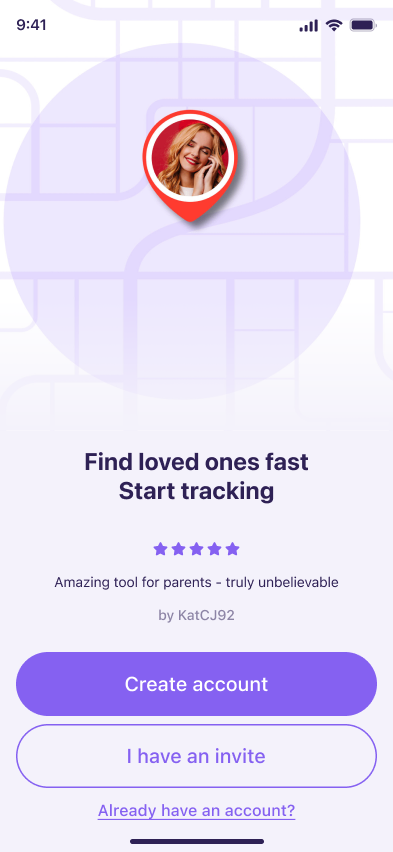
Open the app and choose "Already have an account?"
On the welcome screen, skip account creation and tap the link at the very bottom — this takes you straight to sign-in.
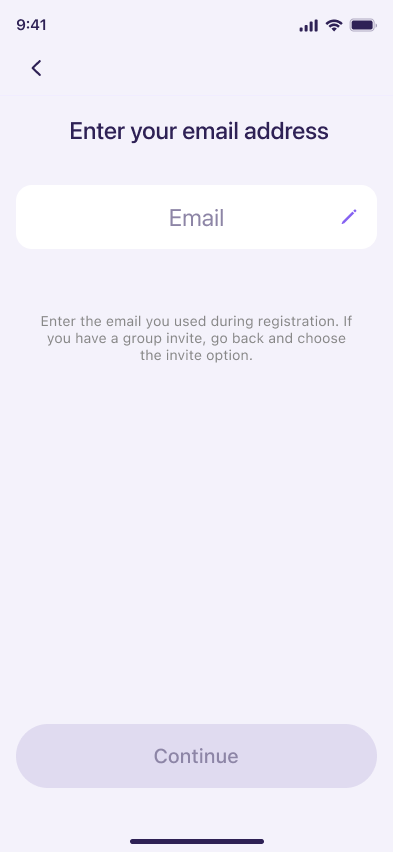
Enter your email address
Type the exact email you used when you subscribed, then tap Continue.
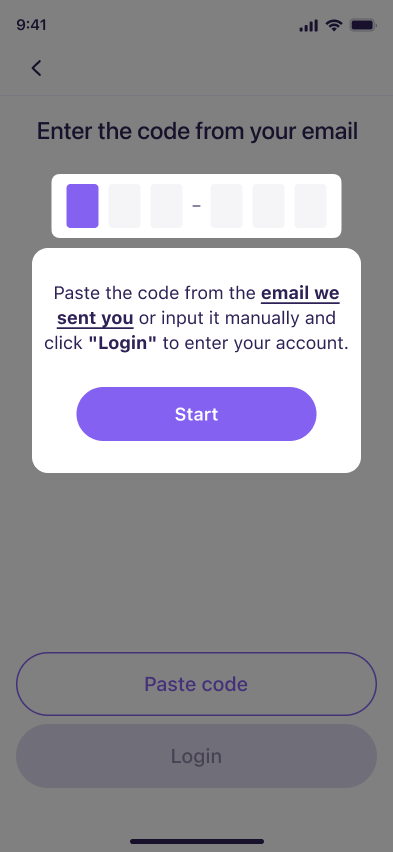
Paste or type your activation code
Copy the code from your confirmation email and tap Paste code — or enter each character manually into the boxes.
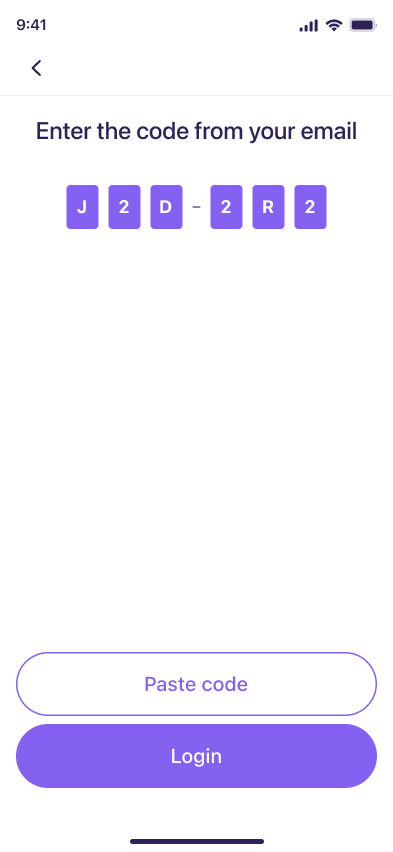
Tap "Login" to unlock Premium
Once all characters are filled in, tap Login. Your Premium account activates immediately — no password required.
A few common fixes
Most sign-in issues come down to one of these three things.
Wrong email entered
Double-check for typos and make sure it's the exact address you used when you subscribed — not a different one.
Code not received
Check your spam or promotions folder. If it's still missing, email us and we'll resend it right away.
Code expired or already used
Codes are single-use. If yours doesn't work, contact support and we'll issue a new one instantly.
Don't have the app installed yet?
Download Find My Location and follow the steps above to activate your Premium account.

Need a hand? Email us at support@familylocate.app — we're happy to help.